How to Redact a PDF Properly (Free and Secure Methods)
To redact a PDF properly, you have to remove the hidden text and metadata underneath the black box, not just cover it. Use a real redaction tool that deletes the content, or flatten the page to an image so the words are gone. A black rectangle drawn on top is not enough - it can be moved, copied, or lifted.
The quick way
If you have Adobe Acrobat Pro, it has a purpose-built redaction feature that deletes the underlying content, not just hides it. This is the fastest reliable method.
- Open the PDF in Acrobat Pro.
- Go to Tools, then Redact.
- Select Mark for Redaction and draw over the text, names, or numbers you want gone.
- Click Apply. This is the step that actually deletes the content underneath the marks.
- When prompted, run Sanitize Document to strip hidden metadata, comments, and attachments.
- Save the file under a new name so you always keep the untouched original.
The important part is step 4. Marking a redaction does nothing on its own. Applying it is what removes the data. If you skip Apply, you have shipped a document with all the "redacted" text still readable inside it.
Acrobat Pro is paid software. If you do not have it, the free method below gets you to the same secure result.
The free method
You do not need paid software to redact safely. You need a method that destroys the underlying text. The most dependable free approach is to flatten the sensitive page to an image so there is no text layer left to recover.
Here is a free workflow that works on both macOS and Windows:
- Open the PDF and cover the sensitive content with solid black boxes. On macOS you can use Preview's shape tools; on Windows you can use the built-in PDF markup or a free editor.
- Now flatten it. Print the document to PDF and choose an option that rasterizes the page, or export each redacted page as a flat image (PNG or JPG) and rebuild the PDF from those images.
- Open the new file and try to select text over the black boxes. If nothing highlights and nothing copies, the text is genuinely gone.
- Delete the intermediate working file so the reversible version does not linger.
Why the extra flatten step matters: in most PDF editors, drawing a black rectangle only adds a shape on top of the page. The original characters still sit underneath in the text layer. Anyone can select the area, copy it, paste it elsewhere, or simply move the box and read what is behind it. Search engines and text-extraction tools read that layer too. A black box is a visual cover, not a redaction.
Flattening to an image removes the text layer entirely. There is nothing left to select, copy, or reveal. That is the difference between hiding and redacting.
One caution with the image method: it also removes searchable text from the whole page, and it can enlarge the file. Only rasterize the pages that actually contain sensitive material, and keep the rest as normal text where you can.
Where Surface fits
Surface does not redact PDFs. Once your document is properly redacted using one of the methods above, though, Surface is where that matter should live and where the rest of the disclosure work happens.
Surface is a desktop app for macOS and Windows built for Ontario legal practice. Your files sit in a Canadian, LSO-aware vault hosted on AWS servers in Montreal, with full audit logs on every action, so you can show who touched a document and when.
From there, Surface assembles the rest of the package. When you need to combine your redacted document with exhibits and cover pages into a single disclosure bundle, you can use the built-in PDF merge tool - see how to merge PDF files free. When the bundle needs a signature, Surface handles multi-signer e-signature with a signed PDF and a Certificate of Completion - see how to sign a PDF online free. You can also ask questions across the matter and get answers with exact-paragraph citations back to the source.
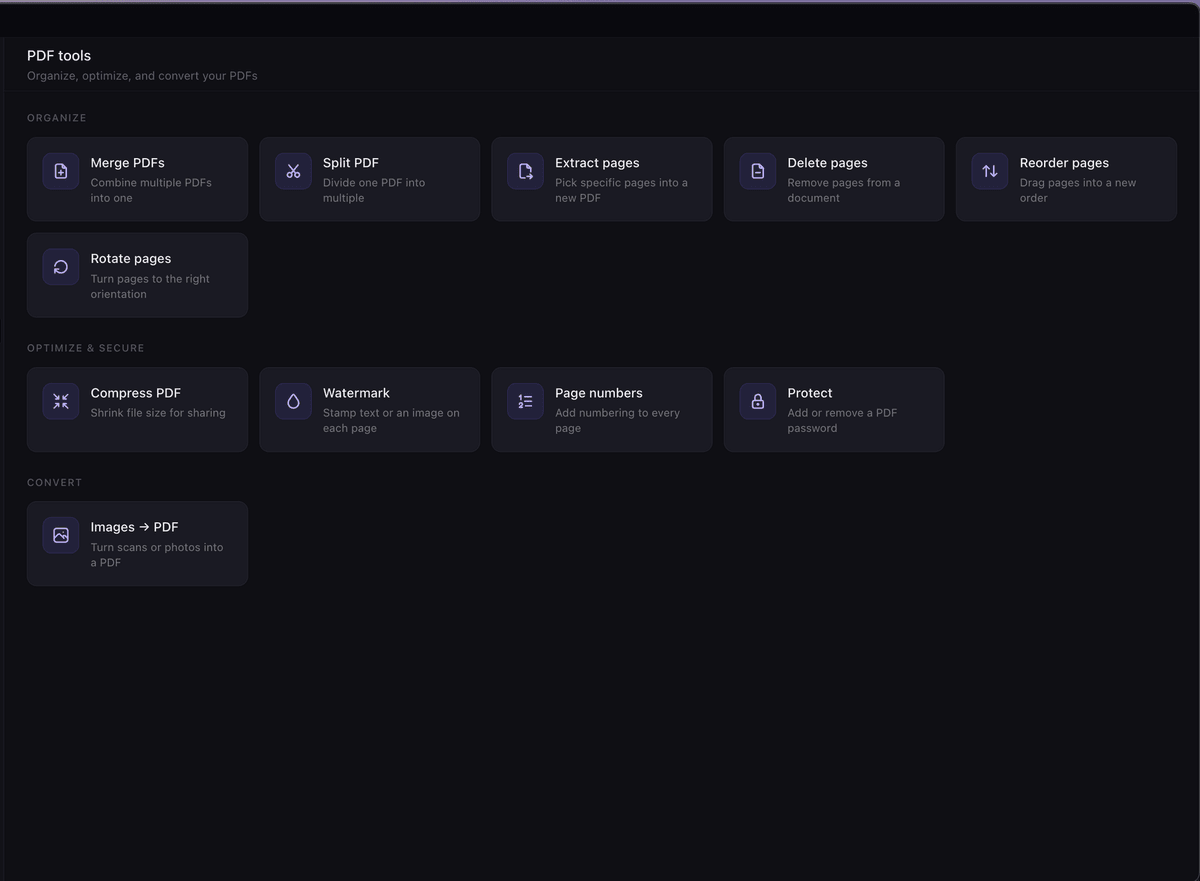
So the honest split is simple. Redact the document with a real redaction method first. Then bring it into Surface to store it, bundle it, sign it, and share it.
Why this matters for lawyers
Redaction failures are one of the quieter ways confidential information leaks. If you are filing with the court or producing documents on disclosure, anything you meant to hide - a client's social insurance number, a home address, banking details, a privileged passage - needs to be actually removed, not visually masked.
Reversible redaction has caused real disclosure breaches. Organizations have released documents where the black boxes could simply be copied off or deleted, exposing exactly the information they were trying to protect. The pattern is almost always the same: someone drew a box, never flattened or applied it, and the text stayed in the file.
For Ontario lawyers this connects directly to LSO Rule 3.3-1, your duty to hold client information in strict confidence. Producing a document whose redactions can be reversed is a confidentiality problem, not just a formatting one. It is worth building a fixed habit: redact, then test by trying to select and copy the hidden area before the file ever leaves your office.
If your practice tools are US-hosted, remember there is a separate exposure layer around where the data lives and who can compel it - you can read more on our compliance page.
This section is general information, not legal advice. Confirm your obligations against the current LSO rules and your own professional judgment.
FAQ
Can redaction be undone?
Proper redaction cannot be undone, because the content is deleted from the file. Improper redaction - a black box with the text still underneath - can absolutely be undone by copying, moving the box, or extracting the text layer. The test is whether the underlying data still exists.
Is a black box enough?
No. On its own, a black rectangle just sits on top of the page while the original text remains in the file and can be copied or revealed. You have to apply a real redaction or flatten the page to an image so the text layer is gone.
How do I redact a SIN?
Cover the social insurance number, then remove the underlying text: apply a true redaction in a proper tool, or flatten that page to an image. Afterward, try to select and copy where the number was. If nothing copies, it is gone. Never rely on a black box alone for something as sensitive as a SIN.
Is free redaction safe?
Yes, if you do it correctly. Flattening the sensitive pages to an image with a free tool removes the text layer completely, which is genuinely secure. What is not safe is any free method that only draws a shape on top and leaves the text intact underneath.
Does redacting change my original file?
It should not, if you work on a copy. Always redact a duplicate and keep the untouched original in a safe place, in case you need the full document later or have to re-do the redactions differently.
Get Surface
Surface keeps your matters in a Canadian, audit-logged vault and handles the work that comes after redaction - merging exhibits into a disclosure bundle, e-signing, client intake, and AI Q&A with citations across your documents. One flat price, everything included.
Try it free for 14 days, no credit card required. Download Surface and start your trial in the app.
Related posts
How to Sign a PDF Online for Free
How to sign a PDF online for free, whether e-signatures are legally valid in Canada, and how lawyers get a signed PDF with a full audit trail.
Read →How to Merge PDF Files for Free (2026 Guide)
How to merge PDF files for free in 2026 - the fastest methods, free tools, and how to combine exhibits and disclosure bundles without uploading client files.
Read →